




















 Defense
 Vigilance
 Seer





 How to Craft
 Choose a Crew Skill
 Armormech
 Armstech
 Artifice
 Biochem
 Cybertech
 Synthweaving

 How to Craft Fast
 Gathering Guide
 Rare Materials Guide
 White Materials Guide
 Jawa Junk

 Augments
 Medpacs, Stims and Adrenals

 Synthweaving Crafting Tree





 Crafted Decorations
 Crafted Mounts
 Crafted Dyes
 Crafted Crystals

 Events Calendar
 Galactic Seasons
 PvP Seasons
 Bounty Event
 Double XP Event
 Feast of Prosperity
 Gree Event
 Life Day
 Nightlife Event
 Pirate Incursion Event
 Rakghoul Event
 Spring Abundance Festival
 Swoop Event
 Accessibility HubAll Accessibility guides and info
 DeafPlaying while deaf or hearing-impaired
 BlindPlaying while visually impaired or with low vision
 ColorblindPlaying with colorblindness and settings options
 AnxietyPlaying with general anxiety or social anxiety


 Jedi Knight
 Jedi Consular
 Trooper
 Smuggler
 Sith Warrior
 Sith Inquisitor
 Bounty Hunter
 Imperial Agent
 Bounty Hunter
 Imperial Agent
 Jedi
 Jedi Consular
 Jedi Knight
 Sith
 Sith Inquisitor
 Sith Warrior
 Smuggler
 Trooper
 Legacy Gear
 Lightsabers
 Double-Bladed Lightsabers
 Vibroswords
 Double-Bladed Vibroswords
 Blaster Pistols
 Blaster Rifles
 Sniper Rifles
 Blaster Cannons

Are you able to log in to Star Wars: The Old Republic, but when you try and press play, nothing happens? Your play button may or may not be grayed out, and you likely won’t have any type of error message. When you click play, even after waiting, nothing happens.
Unfortunately, this can be caused by many different reasons, and isn’t a quick-and-easy-fix – in short, you need to find out what is wrong with your computer, and with no error messages, it can be really hard to figure out sometimes.
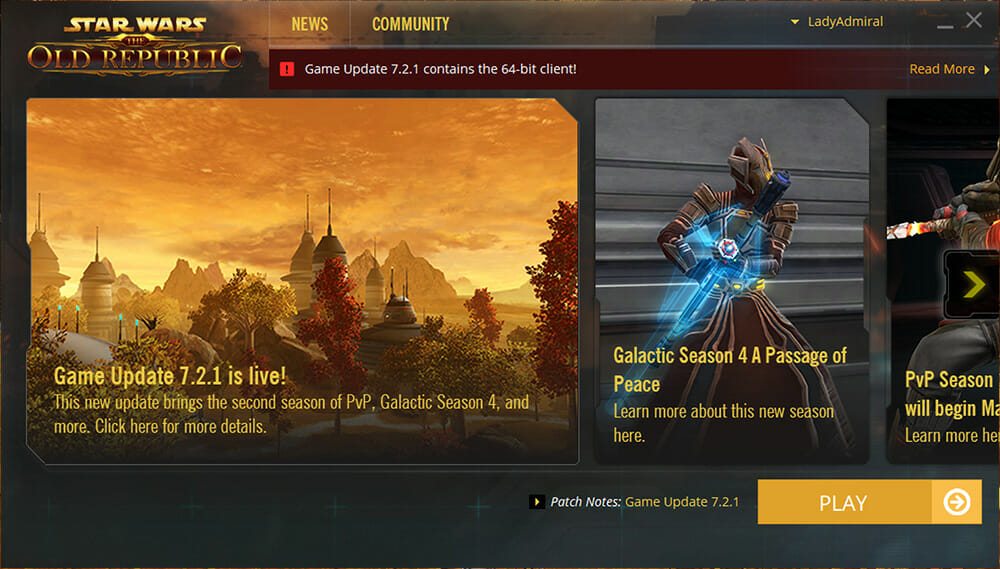
There is two different issues you may be facing, so we’ll go through trying to fix both!
- Your computer may not be able to connect to the SWTOR servers over the internet, so it can’t update your files and launch the game.
- Your computer may not have the software needed to run the upgraded version of the game.
- Your computer may not have the hardware needed to run the upgraded version of the game. (very rare)
This is a huge list of things you can try – none are guaranteed in anyway. The actual fix seems to often vary a lot from player to player.
Checklist
Did you try these things yet?
☐ Restarted Game/Steam
☐ Repair Your Launcher / Verify Your Games Files
☐ Edit client_settings.ini settings
☐ Install DirectX 9
☐ Microsoft Visual C++ Redistributable
☐ Firewall / Antivirus add exception
☐ Windows N?
☐ Are you from Brazil?
Fix #1 – “Stop” Game and Restart
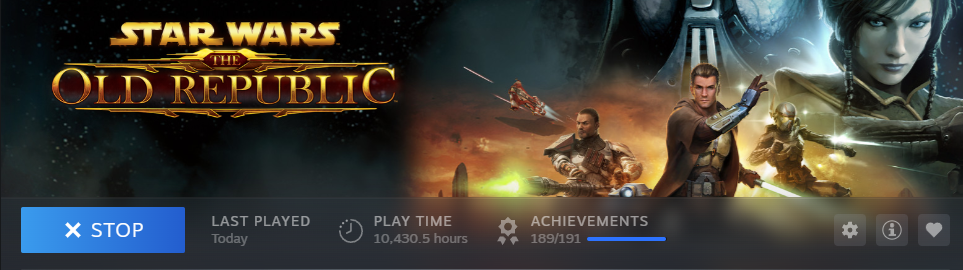
Sometimes things just get interrupted when you are starting up the game – and it never quite gets to open it up all the way, and is only partially running in the background.
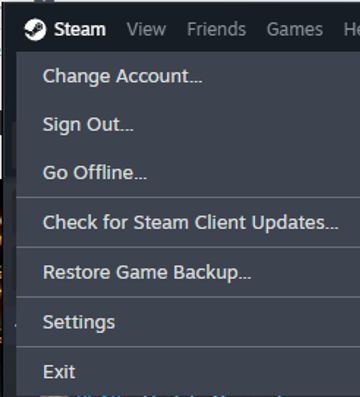
If you are playing through the Steam Launcher, press the blue Stop button on steam. Exit Steam to shut it down. Then restart Steam and restart SWTOR to see if that works.
If you are using the SWTOR.com launcher, try pressing CTRL+ALT+DELETE on your keyboard and open the Task Manager. Find Star Wars: The Old Republic on the list, right click it, and choose End Process. Wait a minute or so to make sure it is fully cleared out.

Fix #2 – Repair Your Launcher / Verify Your Games Files
If your games files are not 100% correct, your game may have all kinds of issues. You can easily check if your game’s files are up to date when you do not have the game running – it is unlikely this is what is wrong if your game is not launching, but it’s a very easy fix if it is.
To repair your game files, there are two different methods – choose the Steam option if you play the game through Steam, choose the SWTOR.com if you just log into the game from the file you downloaded originally on SWTOR.com (properly called the Direct download launcher).
Steam
If you are using Steam, you’ll first need to exit the game if you have it open in its broken state – you may not be able to Quit Game like you normally would. Use ALT+TAB on your keyboard to open your windows programs, and while holding down ALT, tap TAB until Steam is highlighted. Once you are in Steam instead of SWTOR, you can click the button to force stop the game.

While SWTOR is not running, right-click your Star Wars: The Old Republic game in the Steam app and choose Properties.

In the popup window, choose Installed Files on the left. Then click the “Verify integrity of game files” button. This will compare the SWTOR files on your computer to the ones on the server – if any got broken, jumbled or missing while your game patched, it will re-download them and replace them. The % percentage of “Verifying integrity of files…” will jump around up and down from 1% to 100% to 12%, just let it run until it says “All xxx files successfully validated”.

You can then try closing the Properties window, and clicking “Play” to launch the game and see if it fixed things. You will likely need to re-accept the “End User License Agreement” by scrolling down all the way and choosing Accept, then the “Rules of Conduct, Privacy Policy, & Terms of Use” by scrolling down all the way, checking the two boxes, then clicking Accept.
I was having a problem where I would click Play on steam and the launcher and game just wouldn’t boot up – this fixed it for me.
SWTOR.com
Click the Settings cog on the Launcher. It’s located on the bottom left of the launcher.

Click the Repair button on the Settings screen, then click Save.

The Repair button is clickable if you are logged into the launcher and it has detected an error.
This often looks like it’s trying to re-download and re-install the entire game – it’s just going through all your files and checking them, let it run. You can then try closing the Properties window, and clicking “Play” to launch the game and see if it fixed things. You will likely need to re-accept the “End User License Agreement” by scrolling down all the way and choosing Accept, then the “Rules of Conduct, Privacy Policy, & Terms of Use” by scrolling down all the way, checking the two boxes, then clicking Accept.
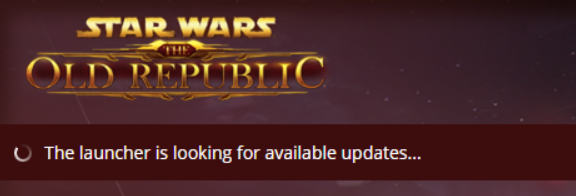
If it is saying at any point “The launcher is looking for available updates….” and gets stuck there on the original launcher, you can also try this, then repair:
Go to your installation directory and delete the two files that end with metafile.json. That should trigger an update that will look for the most recent launcher release.
The path would look something like this C:\Program Files (x86)\Electronic Arts\BioWare\Star Wars – The Old Republic
Fix #3 – Edit client_settings.ini
The .ini file is a set of text settings that you can edit before you open the game, and it also has some settings that are not available in-game at all. Sometimes editing it before trying to open the game can help.
This is a common problem and an easy fix!!!
In your File Explorer, go to:
%localappdata%\swtor\swtor\settings
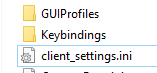
Then open the client_settings.ini file by double clicking it – it is a text file with a list of settings, you can open it with Notepad.
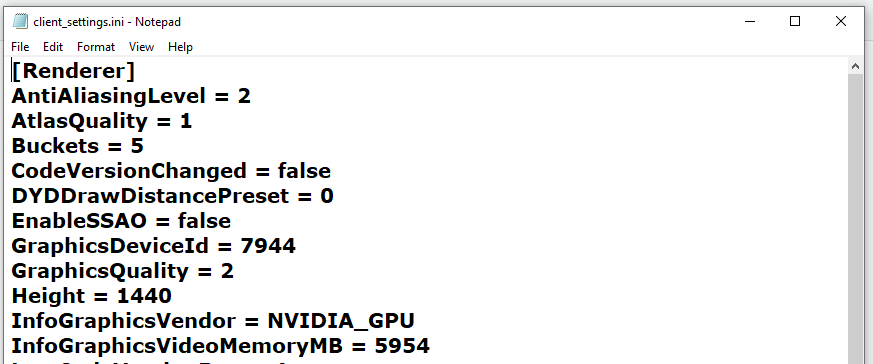
Part 1 – Screen Settings
Try finding these settings in the list and changing them – or if you can’t find them in the list at all, add them at the bottom of the list.
- Fullscreen = false
- D3DFullScreen = false
- RefreshRate = 60
Part 2 – Resolution Settings
You will also want to double-check your resolution is being correctly understood by SWTOR. To find your resolution, type “Resolution” in your windows search bar and press enter – this will open the display settings.

To find out what your resolution on your computer is, it will be the two numbers under Display Resolution (Width x Height)
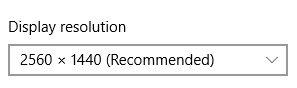
Once you know your resolution, in the client_settings.ini file, check all of these settings and make sure they match what your resolution is. They will be spread out throughout the list in no particular order.
- NativeHeight =
- NativeWidth =
- Height =
- Width =
Fix #4 – Install DirectX 9

You may not have the “DirectX 9” software on your computer which allows the game to run. This is an older piece of software that you need to download, and the game won’t run if you only have the newest version on your computer.
To fix this, you will need to download the DirectX End-User Runtimes (June 2010) from microsoft.com, it’s an official piece of software:
https://www.microsoft.com/en-us/download/details.aspx?id=8109
Just click the red “Download” button on this page.

The file you downloaded will be named directx_Jun2010_redist.exe
Make sure to fully close your game before you try this step.
You need to find this file and double-click it to run it. If you happen to be using the Chrome browser, it may be immediately visible in the bottom left of your browser and you can just click it to run it. It does not matter where you save / install it.
Then go through the steps to install it.

Once it is installed, try opening your game again.
Fix #5 – Microsoft Visual C++ Redistributable
Your computer may be missing another type of software, called the Microsoft Visual C++ Redistributable. This is uncommon, but did fix the “play” button issue for some players who reported the game was running fine before, but after the 7.2.1 update, stopped working even after trying the other steps. All you need to do is full close your game, download the software, then install it.
Microsoft Visual C++ Redistributable Download Page
https://learn.microsoft.com/en-us/cpp/windows/latest-supported-vc-redist?view=msvc-170

You want to click the download called X64 with the link https://aka.ms/vs/17/release/vc_redist.x64.exe .
The file you downloaded will be named vc_redist.x64.exe
Make sure to fully close your game before you try this step.
You need to find this file and double-click it to run it. If you happen to be using the Chrome browser, it may be immediately visible in the bottom left of your browser and you can just click it to run it. It does not matter where you save / install it.

Then go through the steps to install it.
Fix #6 – Firewall / Antivirus

If you have an antivirus program like:
- Windows Defender Firewall (comes automatically with Windows)
- Malwarebytes
- Norton Antivirus
- McAfee Antivirus
- Avast
- Bitdefender
- Avira Antivirus
- Kapersky
You may need to tell your Antivirus software that SWTOR is safe to connect to, or you won’t be able to connect to the servers or other parts of the game’s online portions. This is a very old issue that some players have encountered since the game’s launch.
First off, if your antivirus software pops up with an alert, accept it. You do not need to disable your Firewall or Antivirus, you just need to allow SWTOR to pass through it safely.
How you do this is slightly different for each Antivirus software:
- Windows Defender Firewall: Allowing apps through Windows Defender Firewall
- Malwarebytes: Exclude detections in Malwarebytes for Windows
- Norton Antivirus: Allow Internet access for a blocked program (set exceptions to “Allow” not “Auto”)
- McAfee Antivirus: Stop McAfee Firewall from blocking apps and devices in Windows
- Avast: Using the Blocked & Allowed apps settings screen in Avast Antivirus
- Bitdefender: How to allow an app through Bitdefender Firewall
- Avira Antivirus: Add exceptions for Avira Antivirus in 6 simple steps
- Kapersky: Manage blocked and trusted applications (disable “scan secure/encrypted connections”)
- Comodo: Blacklist and Whitelist Applications (whitelist the entire folder, not just the .exe file)
- ESET – disable “protocol filtering”
Fix #7 – Windows Media Player / Windows N
It is unlikely, but there is a chance you are using Windows N, rather than regular Windows.
The European Commission mandated that Microsoft offer a version of the operating system without bundling Windows Media Player and related apps, the “N” stands for “Not with Media Player”. If you bought your Windows copy as part of a bundle, or maybe got it through your work or school if you live in the EU, you might have accidentally gotten Windows N.
To check, press the Windows button, and choose Settings. It will be in the About section under Edition.
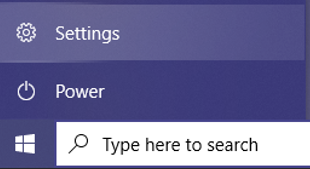
If you do have Windows N, you can install the Media Feature Pack for Windows N from the official Microsoft site.
Fix #8 – Remove Compatibility Settings

If you happen to be running the game in compatibility mode, you can try turning this option off and it may fix your blank server issue the next time you log in. Make sure to close the game before trying this fix. This issue was possibly introduced as part of Update 7.2.1, but I don’t see many players saying it fixes things in more recent updates.
Step 1 – Find launcher.exe
This fix seems to be a common culprit for this bug.
To try this quick fix, you will need to find where your SWTOR “launcher.exe” file is located on your computer. For some players this may be called “swtor.exe” instead.
If you are using Steam to play the game, you may find it in:
C:\Steam\steamapps\common\Star Wars – The Old Republic
If you are using the launcher from swtor.com, you may find it in:
C:\Program Files (in the SWTOR directory).
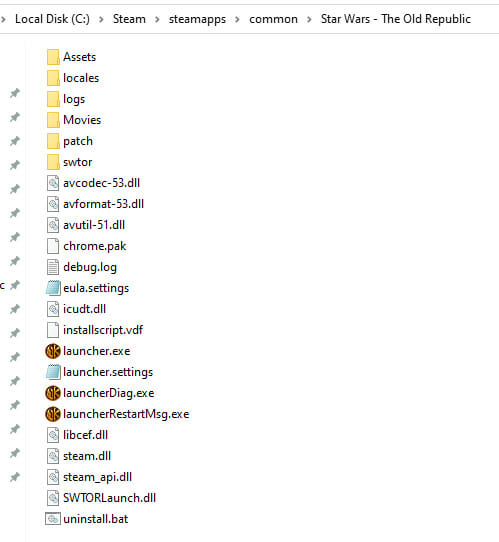
Step 2 – Open Properties
Once you have found your launcher.exe file, right-click it and choose “Properties” from the menu.

Step 3 – Uncheck “Run this program in compatibility mode”
In the Properties window, choose the “Compatibility” tab at the top. Then, near the top of the list, make sure the checkbox “Run this program in compatibility mode” is unchecked and click OK at the bottom.
If it was checked and you unchecked it, click OK at the bottom of the window, then try running the game again. This may have fixed your blank server list issue!
If it was already unchecked, moved on the next thing to try fixing below.

Fix #9 – Computer Specs / Minimum Requirements
The technical change to 64-bit in Update 7.2.1 did raise the game’s Minimum Requirements, sometimes known as “min specs”. These requirements are not very high compared to modern games, and very few players with issues have reported they are below the minimum requirements. It is unlikely this is your issue.
Fix #10 – Brazil Age Verification
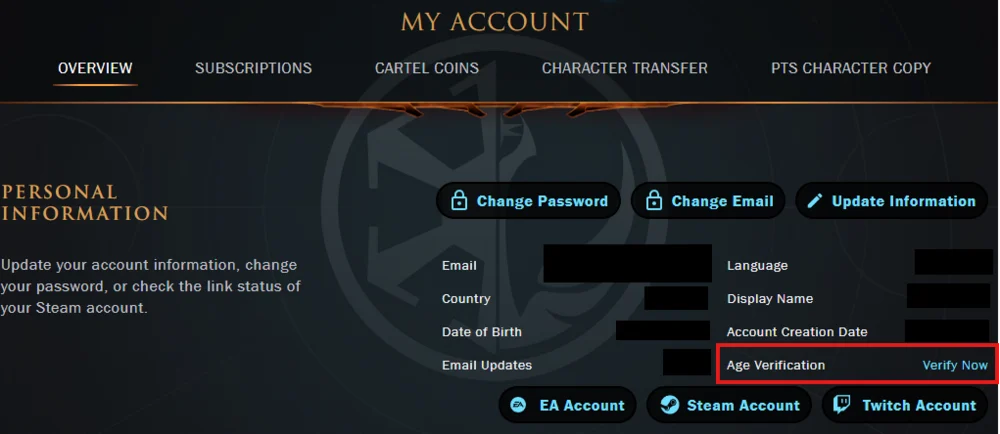
If you live in Brazil, Brazil launched age verification requirements. Verify your account on swtor.com before trying to use the launcher or it will say your username and password are wrong. Info
Fix #11 – Install via Steam / Reinstall
Reinstalling isn’t a recommended method, but may help. EA Support recommends that if “all else fails, install the game via Steam”. If you aren’t already using it, Steam is a a different way to launch the game. It is free, you just need to make a Steam account to use it.
Fix #12 – Contact Support

The previously listed fixes should fix this issue for most players.
But if you have done both steps, and you still can’t see the servers, you may need to contact support. This should be your last option, as troubleshooting through support can be very difficult. Make sure to have your account name / email on hand, what steps you have already tried (you should have tried Fix #1 and Fix #2 from above already), and as much of your computer specs as you know how to find.
For most in-game issues, you should submit a ticket using the in-game Customer Service Help Center. However, since you can’t log in to the game, you can’t do that.
You will need to call or email customer support if you get stuck. Here is the up-to-date Customer Support page. The numbers below are from March 2023 but may change over time.
“Average response time on in-game tickets is about 48 hours as of March 25th 2023.” – EA Support
Phone:
- USA: 1-(855)-345-2186
- UK: +44 (0)208 1969 890
- France: +33 (0) 4 81 68 10 51
- Germany: + 49 (0)221 8282 9212
- Other Countries
Email:
support@swtor.com
Forums
Subreddit
If you need more exact instructions on how to allow SWTOR to pass through your firewall, or want to ask the community rather than support, I recommend posting on the Community SWTOR Subreddit (unofficial resource) and put that you pres play and nothing happens in the title. In the post text, write out what steps you have already tried (you should have tried Fix #1, Fix #2, and Fix #3 and checked your computer specs from above already). If you can include your computer specs too.
 Questions or comments? Feel free to send me a message on Twitter


 Discord
 Email swtorista@gmail.com
 Bluesky @swtorista.com
 Reddit /u/swtorista
 Twitch Swtorista
 Youtube
 Patreon
 Twitter @swtorista